November 7, 2026
Hark 1.5: an AI chat beside every page, and a weekly Briefing
Hark 1.5 adds an AI chat that answers questions about your meetings and acts for you, a weekly Briefing, search at the top and custom shortcuts.
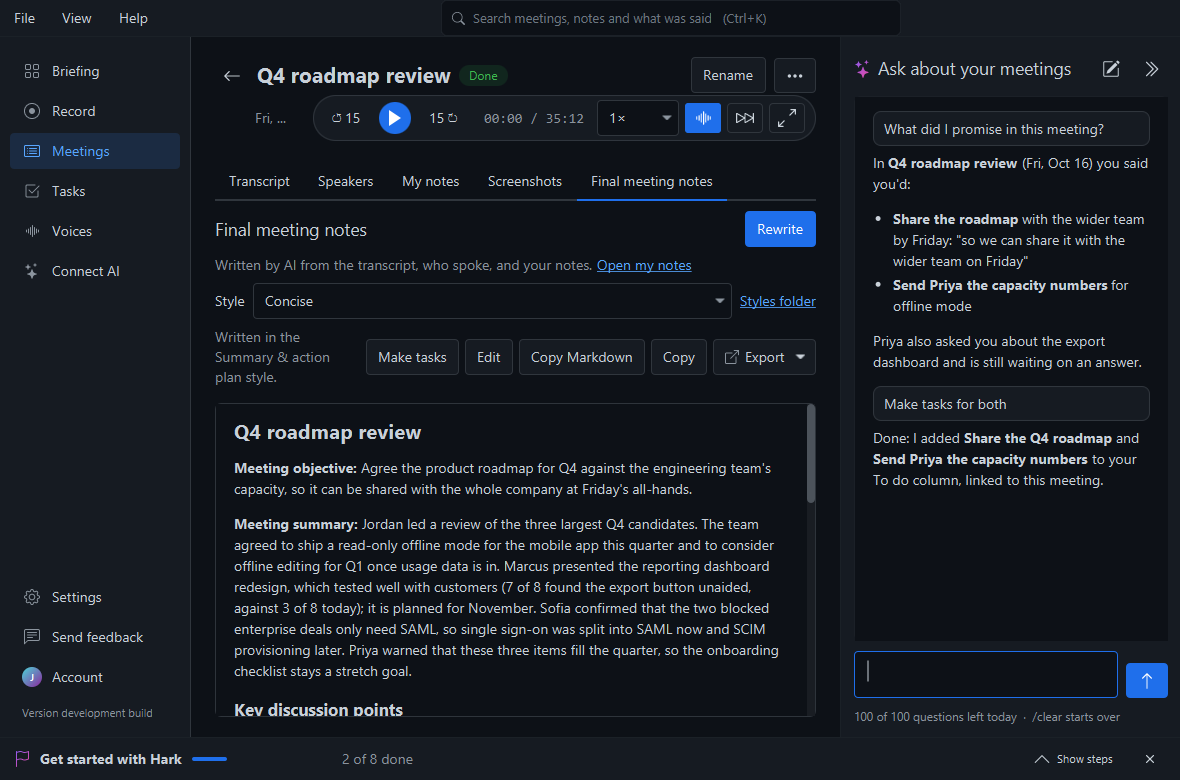
Hark 1.5 came out on November 7, 2026. It’s the biggest update yet: an AI chat that sits beside every page, a Briefing that keeps track of what you said you’d do, and a lot of polish across the app.
Ask about your meetings, from any page
There’s a chat panel on the right of the window now. Open it with the sparkle button or Ctrl+J, and ask what you’d ask a colleague who was in every meeting:
- “What did we decide about pricing?"
- "What did I promise Priya last week?"
- "Did anyone ask me something I haven’t answered?”
It answers from your own meetings, says which meeting each answer came from, and quotes what was said when it helps. On a meeting’s page, “this meeting” means the one you’re looking at. While you record, it can read the live transcript too. Answers come with proper formatting: headings, lists, tables and code blocks.
The chat knows your name, so it can tell when someone asked you something or asked you to do something, and point it out.
It can do things, too
Ask in plain words and it does them for you:
- Write your notes for a meeting. It adds to what’s there, and only rewrites them if you ask.
- Create and update tasks and projects on your task board.
- Name speakers and rename meetings.
- Change your settings and theme (“turn off automatic titles”, “make it dark”).
- Open a page (“show me my tasks”) or the subscription page.
The conversation is kept, even after you close Hark, until you type /clear or press New chat. Drag the chat’s edge to make it wider, or fold it away to a thin strip.
The chat is part of Hark Pro, and works on your first 3 free Pro meetings. It answers 15 questions a day, or 100 with a subscription.
The Briefing: your week, and what you need to do
The Dashboard is now called Briefing, and it’s about one thing: your last 7 days of meetings. At the top, a short summary of what was decided. Under it, the things you need to do: what you said you’d do (“I’ll send the deck”) and what people asked of you, each with the meeting and the words it came from.
Each item has three buttons:
- Done if you’ve already done it.
- Create task to put it on your task board, linked to its meeting.
- ✕ if it isn’t yours.
Hark remembers your choice, and never suggests that item again, even when it comes up in other words. Anything you haven’t checked off stays on the list until you do. Your open tasks and projects are on the Tasks page.
The Briefing is part of Hark Pro, and works on your first 3 free Pro meetings. If you’d rather it only update when you press refresh, there’s a setting for that.
Search, always at the top
The search box now sits in the middle of the window’s top bar, like in a code editor, on every page. Press Ctrl+K and start typing: meeting titles, people, numbers and notes, and, with Pro, everything anyone said in any meeting. Use the arrow keys and Enter to open a result.
Keyboard shortcuts you can change
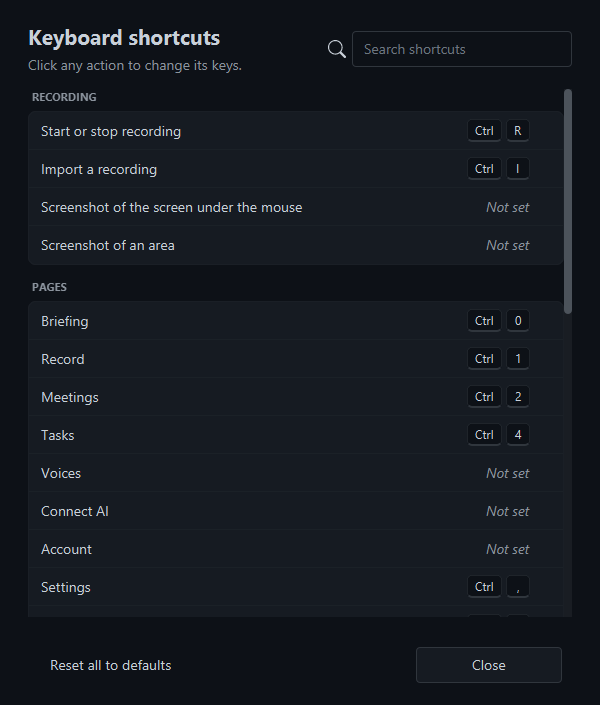
Help > Keyboard Shortcuts (or Ctrl+/) shows every shortcut in Hark, grouped and searchable. Click any action and press the keys you’d like instead. Actions that had no shortcut, like Voices, Connect AI or a new chat, can be given one. If the keys are already taken, Hark asks before moving them.
A new Settings page
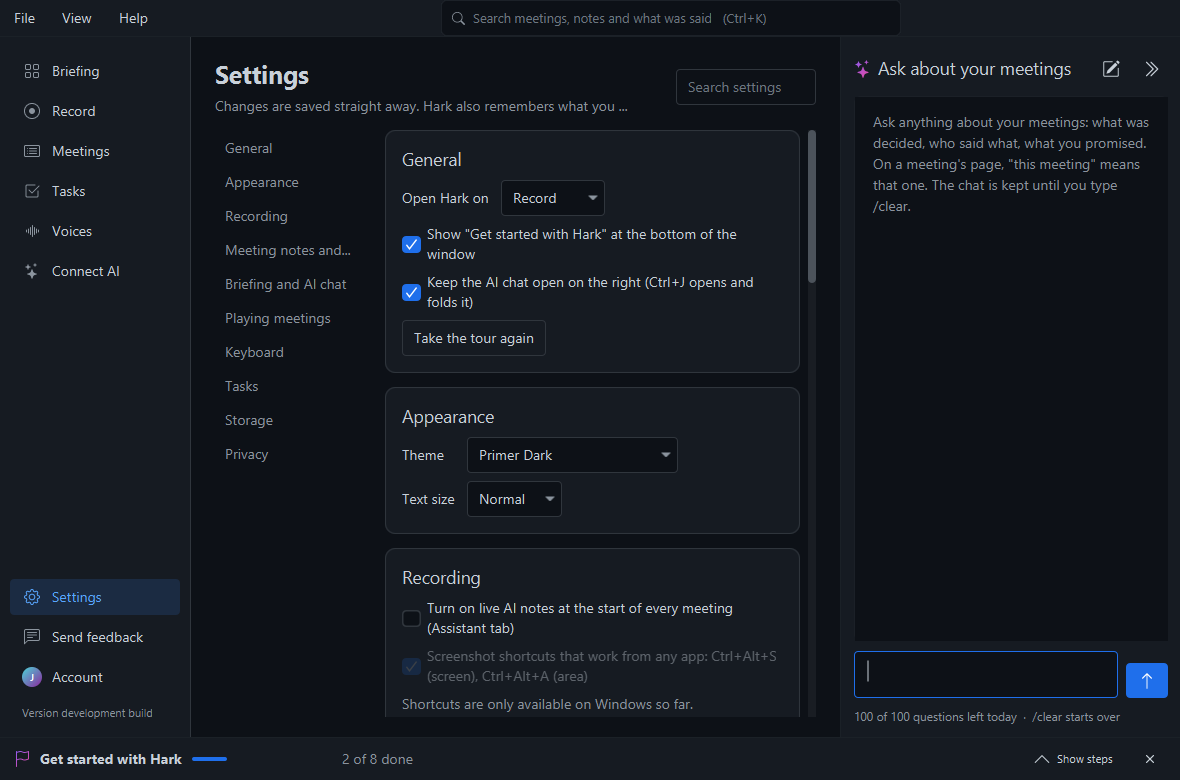
Settings now have their own place in the side bar (the gear), with categories on the left and a search box, so anything is a click or a few letters away. New settings:
- Open Hark on the Briefing, Record, Meetings or Tasks.
- Text size, from small to larger, for the whole app.
- Keep the AI chat open and show the Get started steps.
- Update the Briefing by itself, or only when you press refresh.
- Storage: where your recordings and Hark’s data live, with a button to open each folder.
Getting started
New to Hark? A short tour now shows the main parts the first time you open it, and a Get started bar along the bottom of the window walks you through the rest: record a meeting, take a screenshot, make meeting notes, have Hark recognize your voice, ask the AI, connect your AI app, pick a theme and sync your computers. Each step’s Start button takes you to the right place, and steps tick themselves off as you do them. Hide it whenever you like; Help > Getting Started brings it back.
Polish everywhere
- More room for what matters. A meeting’s page is more compact, so more of the transcript fits on screen, and the player folds into a small bar on the notes and screenshots tabs.
- Pages fit their space. With the chat open or in a smaller window, pages make room instead of cutting buttons off.
- Every pop-up matches your theme, dark title bar included, with no generic warning icons.
Getting it
If you already have Hark, it updates itself. Otherwise, download Hark for Windows, Mac or Linux. It’s free, and your first 3 recorded meetings get every Pro feature, the chat and the Briefing included. Earlier: Hark 1.4.