 Recount AI Notetaker


November 14, 2026
Recount 1.8 for Mac: echo cancelling, screenshots and Voice Memos
Recount 1.8 improves meeting recording on Mac: macOS echo cancelling for your mic, screenshots that survive updates, and drag-and-drop from Voice Memos.
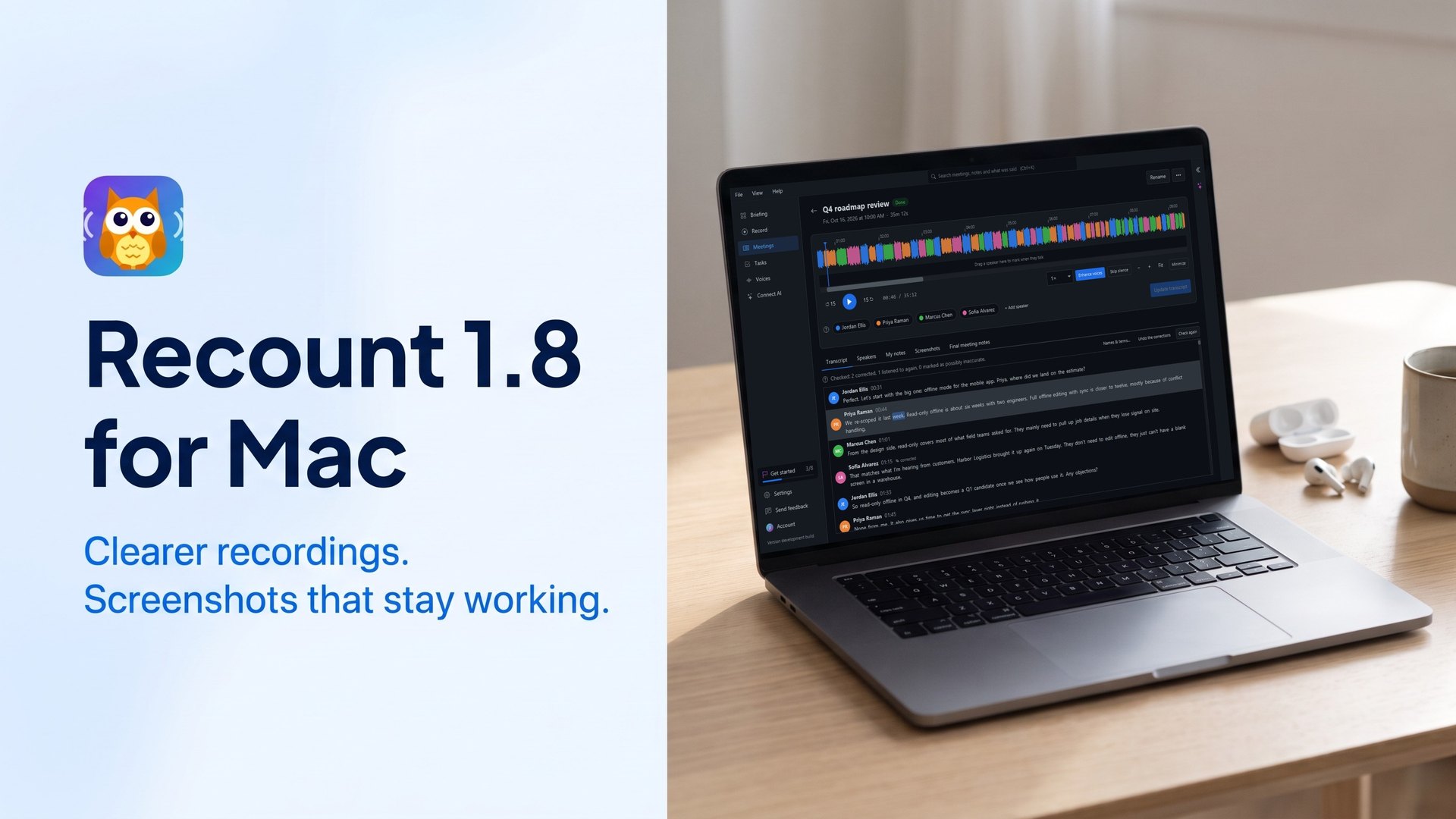
Recount 1.8 is out, and every change in it is for the Mac. We record our own meetings with Recount on a MacBook, and these are problems we ran into ourselves: the meeting echoing into the microphone when we didn’t wear headphones, screenshots that came back black after an update, and recordings in Voice Memos that wouldn’t drag in.
Here’s what changed, and the one thing to do on your Mac after you update.
In short
| What | Before 1.8 | In Recount 1.8 |
|---|---|---|
| Recording without headphones | The meeting came back into your mic from the speakers | macOS echo cancelling keeps it out of the mic |
| Screenshots after an update | Could come back black, though System Settings showed Recount on | Permissions stay with Recount from one version to the next |
| Screenshots without permission | A black picture and no explanation | Recount says what’s wrong and opens the right page of System Settings |
| Voice Memos | Dragging a recording onto Recount did nothing | Drag it in and it’s transcribed |
Clearer recordings on a Mac without headphones
When you hear a meeting on your Mac’s speakers, the microphone hears it too. Recount has removed that echo itself since version 1.2, but a MacBook’s speakers sit right next to its microphones, and a loud call could still end up in your track, sometimes louder than you.
Recount 1.8 records your microphone through Apple’s voice processing, the echo cancelling that FaceTime uses. macOS knows exactly what it is playing, so it can take the meeting out of your mic far better than an app working only from the recording. In our tests on a MacBook Pro, it took out much more of the echo than Recount’s own echo removal did, and your voice stayed clear.
What that means for you:
- The transcript says who really spoke. The other people’s words come from the computer audio track, and your microphone track has just you, so lines aren’t given to the wrong person.
- No more doubled lines. Words heard through the speakers aren’t transcribed a second time from your mic.
- It’s on by default. Nothing to set up, on macOS 14.2 or later. Older Macs keep Recount’s own echo removal.
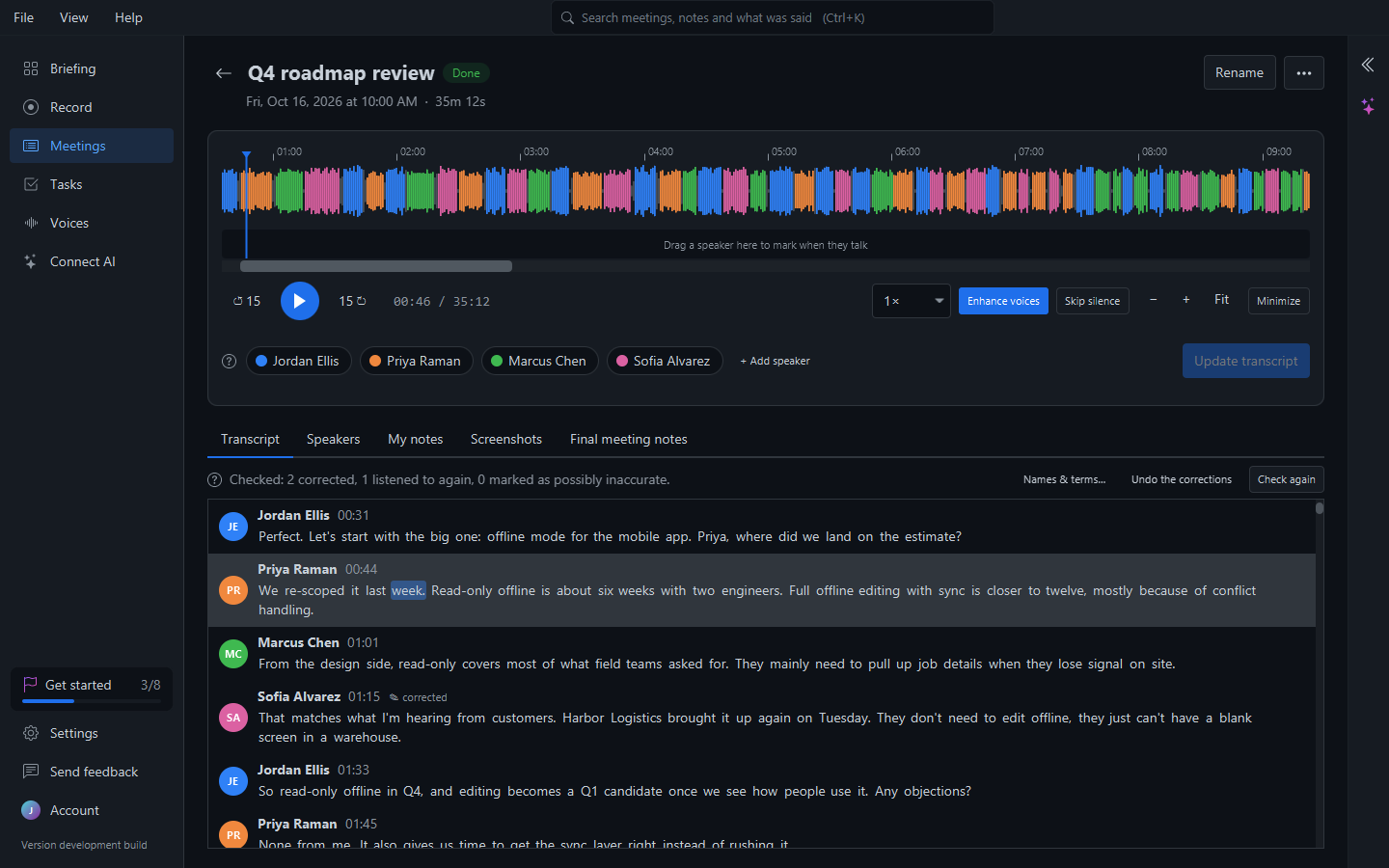
If you’d rather record the raw microphone, turn off Settings > Recording > Use macOS echo cancelling on the microphone. If the voice processing can’t start for some reason, Recount records the ordinary microphone and removes the echo itself, as before, so a meeting is never lost.
One thing to know: while macOS echo cancelling is running, it changes the microphone for the whole Mac, not only for Recount. If people on your call ever say you sound quieter while you’re recording, turn the setting off and tell us through Help > Send Feedback.
Want to record the other people on the call too? Recount records your Mac’s own sound on macOS 14.2 or later, no virtual audio driver needed. Our guide to recording internal audio on a Mac explains the options.
Screenshots that keep working after updates
Taking screenshots during a meeting puts them in your notes and on the timeline. On a Mac they could come back as black pictures after an update, even though System Settings showed Recount turned on. If that happened to you, it wasn’t anything you did.
Why it happened: macOS remembers an app’s permissions (microphone, computer audio and screen recording) by the app’s code signature. Earlier Mac versions of Recount had a signature that changed with every build, so to macOS each update was a brand-new app. The switch in System Settings still looked on, but it belonged to the old version.
What changed: from 1.8, every Mac version of Recount is signed with External Software’s own certificate, the same one in every release. To macOS, each update is now the same app, and it keeps the permissions you gave it.
And if macOS hasn’t allowed screenshots, Recount now says so (“Recount can’t see your screen”) and offers to open the right page of System Settings, instead of saving a black picture.
One step after updating: allow screen recording again
Because 1.8 is the first version with the new signature, macOS sees it as a new app one last time. Do this once, and screenshots keep working through every update after it:
- Update to Recount 1.8 and open it.
- Open System Settings > Privacy & Security > Screen & System Audio Recording.
- If Recount (or Hark, its old name) is in the list, select it and click the minus (−) button to remove it. Turning the switch off and on isn’t enough, because that entry belongs to the old signature.
- In Recount, take a screenshot from the Record page. When Recount says it can’t see your screen, choose Open System Settings. Recount is back in the list: turn it on.
- When macOS asks, choose Quit & Reopen.
Prefer Terminal? tccutil reset ScreenCapture com.externalsoftware.hark clears the old entry in one go (the name ends
in “hark” because Recount was called Hark until 1.6). Then do steps 4 and 5.
If your microphone or the other people’s audio stops recording after the update, do the same in Privacy & Security > Microphone, or let Recount walk you through all of it: Help > Set Up Mac Permissions… asks macOS for each permission in turn and checks that it works.
Drag recordings straight from Voice Memos
You could always import a Voice Memo into Recount, but dragging a recording straight out of the Voice Memos app did nothing. Voice Memos doesn’t hand other apps a file when you drag: it hands over the recording’s data and a promise of a file, and Recount’s window wasn’t listening for that.
In Recount 1.8, drag a recording from Voice Memos onto the Meetings page and it imports like any other file:
Recount transcribes it on your Mac, tells the speakers apart and lets you name them. Nothing is uploaded. Recordings you
edited in Voice Memos (saved as .qta files) import too.
More on getting text out of your memos, on iPhone and Mac: how to transcribe voice memos and converting M4A to text.
Getting Recount 1.8
If you already have Recount on your Mac, it updates itself when you open it (it never updates in the middle of a recording). Then do the one step above for screenshots.
New to Recount? Download Recount for Mac (Apple silicon and Intel), Windows or Linux. It’s free: recording, transcription on your computer, speakers and notes, with no meeting bot joining your calls. Your first 3 recorded meetings get every Pro feature too. Comparing options first? See our roundup of transcription software for Mac.
Recount for Mac isn’t an Apple Developer ID app yet, so macOS may warn you the first time you open it. That’s next on our list. Earlier: Recount 1.6, when Hark became Recount.