October 12, 2026 · Updated October 30, 2026
How Hark tells voices apart, and whose voices it remembers
How Hark works out who spoke in each meeting on your computer, why it forgets voices afterwards, and how optional, consent-based voice recognition works.
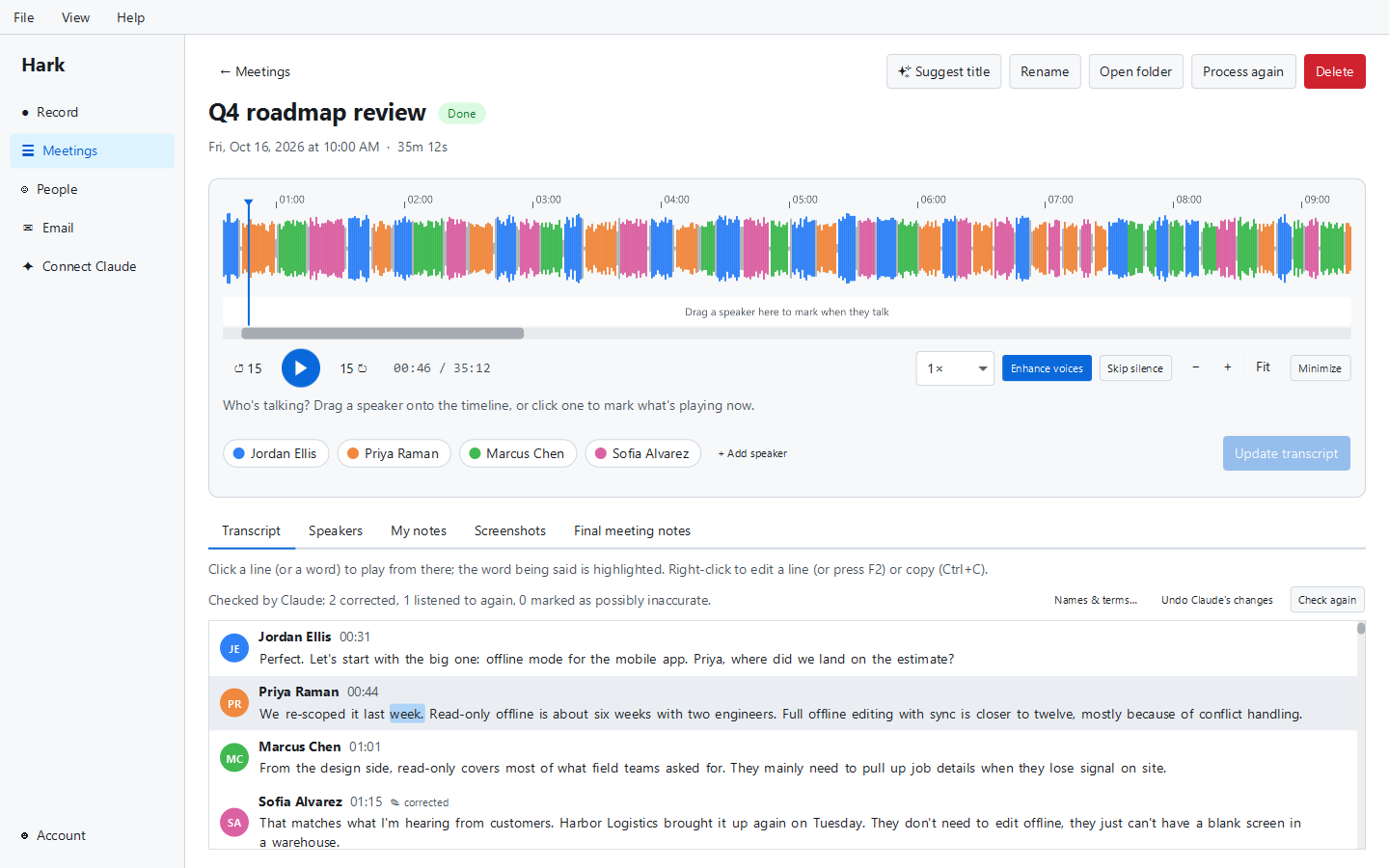
A transcript that says what was said but not who said it is only half useful. Working out who spoke is called speaker diarization. Hark does it in every meeting, on your own computer. Then you name the speakers in a click.
What Hark does not do is remember other people’s voices on its own. It keeps nothing about how the people you meet with sound, and it doesn’t recognise them in later meetings. The only voices it can remember are yours, if you choose to let it, and those of people who sit at your computer and agree for themselves. This post explains how the speaker part works, without the maths, and why we built it this way.
The short version
- Hark finds the parts of the recording where someone is talking.
- It turns short slices of that speech into lists of numbers that describe what a voice sounds like.
- It groups slices that sound alike. Each group is one voice: “Speaker 1”, “Speaker 2” and so on.
- You listen to a clip of each voice and name it. You can pick a name you’ve used before.
- If it gets something wrong, you mark who spoke on the timeline and Hark redoes the transcript using your marks.
- Once the meeting is processed, Hark throws the voice analysis away. The names stay, as text in that transcript.
- Optionally, you can let Hark recognise your own voice, with your written consent, and other people can do the same for their own voice at your computer.
Here is each step in a bit more detail.
Step 1: Finding the speech
A meeting recording is full of things that aren’t speech: silence, typing, breathing, a dog barking. Before Hark can tell voices apart, it needs to know where the talking is. It uses a small model called Silero VAD (voice activity detection) whose only job is to say, moment by moment, “speech” or “not speech”.
This also matters for the transcript itself. Hark cuts audio at natural pauses so it never chops a word in half, and during a live meeting it uses the same detection to send each spoken phrase to the transcriber a few seconds after it’s said.
Step 2: Describing each voice
Next, Hark cuts the speech into overlapping windows two seconds long, starting one second apart. Each window goes through a model called NVIDIA TitaNet, which was trained to tell speakers apart. Out of it comes an embedding: a list of numbers that captures the character of the voice (pitch, timbre, the way someone shapes sounds) while mostly ignoring the words being said.
The useful property is that two slices of the same person’s voice produce similar lists of numbers, and slices from different people produce different ones. “Similar” here is measured as the angle between the two lists (cosine similarity): the smaller the angle, the more alike the voices.
Very short bits of speech, under a second, don’t carry enough voice to be trusted, so they don’t shape the voices. They’re given to whichever voice is closest afterwards.
Step 3: Grouping voices
Now Hark has a pile of these numbers and needs to sort them into people, without being told how many people were there.
It uses a standard technique called average-linkage clustering. Start with every slice in its own group, then keep merging the two groups that are most alike on average, until everything is in one group. That produces a family tree of possible groupings, from “everyone is a different person” to “everyone is the same person”.
To choose how many voices there really were, Hark scores each possible split with a measure called the silhouette score, which asks: is each slice much closer to its own group than to the next nearest group? The split with the best score wins. If even the best split scores poorly, Hark concludes there was only one voice. That stops it from inventing a second speaker when one person simply changed their tone.
Each group becomes “Speaker 1”, “Speaker 2” and so on, and every word of the transcript is given to whoever was speaking at that moment.
Step 4: Naming the speakers
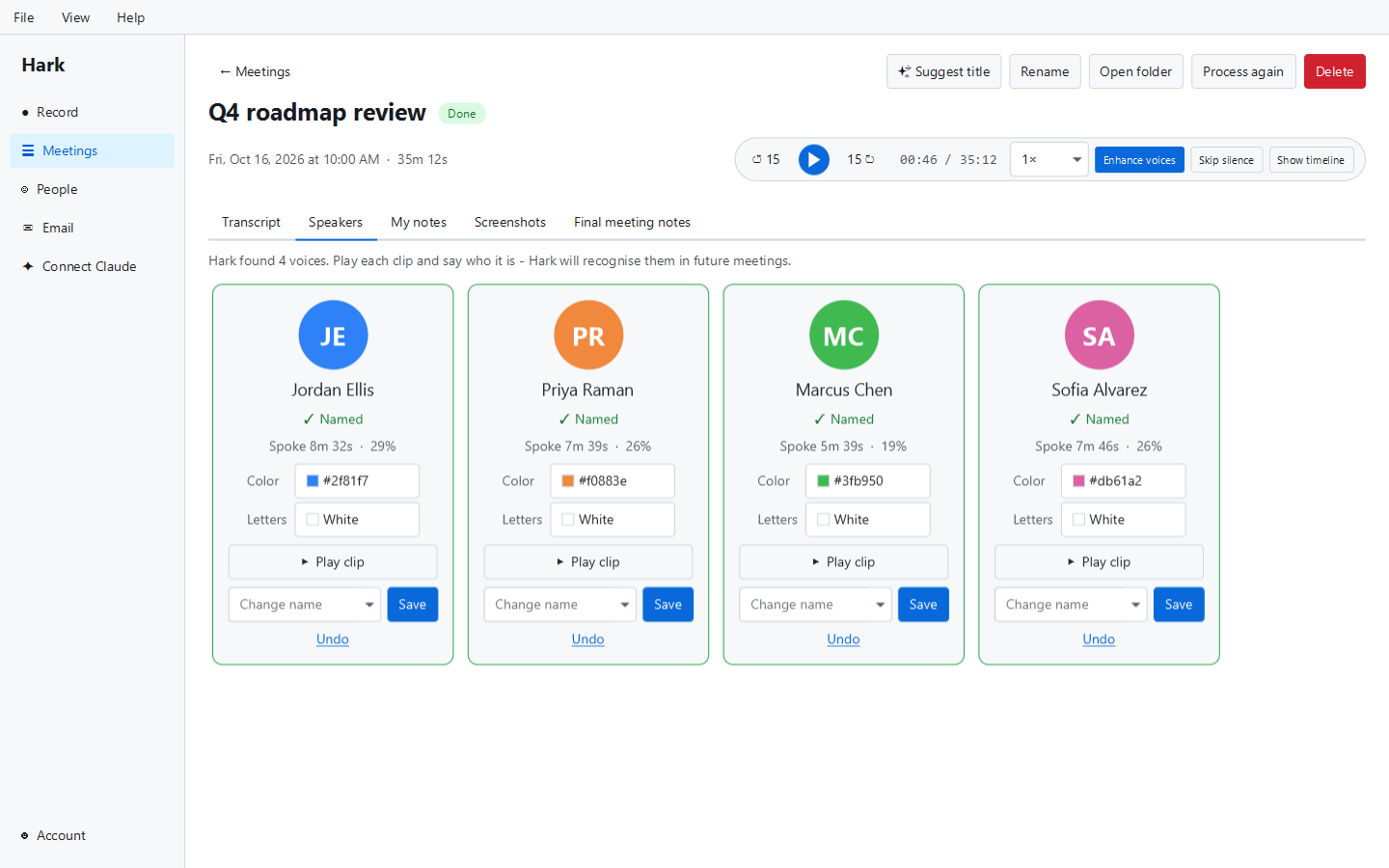
For each voice, Hark picks clips you can listen to and shows them as cards on the meeting’s Speakers tab. You listen, then type a name or pick one you’ve used in earlier meetings. The name goes on that meeting’s transcript.
If you give two voices in one meeting the same name (it happens when someone sounds very different talking and presenting), Hark merges them: their lines, timeline marks and speaking time move to one speaker.
Naming is per meeting. Hark doesn’t carry anyone’s voice over to your next meeting, so next week you name the speakers again. It takes a click per person, and it’s the price of not keeping a file of everyone’s voice.
Step 5: Fixing mistakes on the timeline
Telling voices apart is good, not perfect. It struggles most with:
- Similar voices, for example two people of a similar age and accent on the same call.
- Overlapping speech, when people talk over each other.
- Short interjections like “yes” or “right”, which carry very little voice.
- Poor audio, such as a distant laptop mic or heavy compression on a call.
When Hark gets voices wrong, you don’t edit line by line. The meeting player shows the waveform with speakers along a timeline. You mark stretches of the meeting as belonging to a particular speaker, then press Update transcript.
Hark then reprocesses the meeting with your marks as the ground truth:
- Marked stretches belong to the speaker you marked.
- Any automatically found voice that touches one of your marks is treated as suspect. Its unmarked speech is cut into pieces about three seconds long, and each piece goes to whichever marked voice it sounds most like.
- Voices that touch none of your marks are left as they were.
In practice, marking a few clear stretches for each person is usually enough to sort out a meeting where two voices were mixed up. Your marks, and the names you’ve given, survive reprocessing.
Step 6: Forgetting the voices
Everything in steps 2 to 5 works on the recording of that one meeting. Once the meeting is processed, Hark discards the voice analysis. It keeps nothing about how “Speaker 2”, or the person you named, sounds, and it never compares one meeting’s voices with another’s. What’s left is the transcript: who said what and when, as text.
Recognize my voice (optional)
The voices Hark can remember are yours, if you ask it to, and those of people who agree for themselves at your computer (more on that below). Turn on Recognize my voice and Hark labels you in your meetings automatically, so you only name the other people.
Setting it up takes a minute:
- You read a short consent that explains what Hark will keep, why, and when it deletes it.
- You type your full name as an electronic signature.
- You read a short passage aloud, including a sentence saying that you agree.
From that recording, Hark learns to recognise your voice. What it keeps is encrypted on that computer, never uploaded to us, never synced to your other computers and never shared. On another computer you record again. Hark deletes it after six months (and asks whether you want to record again), straight away when you choose Delete my voice, or when a different External Software account signs in on that computer.
We never receive your voice. We keep only a record that you agreed (your account email, the name you signed, when, the consent text, the sentence you read as text, and the IP address and computer it came from), which you can see on your account page. The full details, and the consent text itself, are in the Hark voice data policy.
Why only voices whose owners agreed
Recognising someone by their voice is personal, so it should only happen when that person has agreed to it. You can agree for yourself. Someone else can agree for themselves too: under Account > Add a person, they sit at your computer, read the same consent, sign it with their own name and read the passage aloud in their own voice. Nobody can agree for someone else. The people on the other end of your call haven’t been asked, so Hark doesn’t remember their voices. Naming them takes a click per meeting, and in return nobody’s voice is kept without their say.
Recording consent is a separate question, and it’s still yours to handle: tell people when you record, and get their consent where the law requires it. Our recording consent laws by state guide is a starting point.
What stays on your computer
All of this happens locally: finding speech, describing and grouping voices, reprocessing, and recognising your own voice. None of it is uploaded. If you turn on sync, your transcripts (with the names you gave) travel end-to-end encrypted between your computers, but no audio and no voice data. There is more on that choice in why Hark transcribes on your computer.
Further reading
- Speaker labels in transcription: what they are and why they matter.
- How to transcribe an interview: where speaker labels help most.
- Introducing Hark: everything else Hark does.
Telling speakers apart and recognising your own voice are free, like all of Hark’s local features. Download Hark for Windows, macOS or Linux, or read more on the Hark page.