October 10, 2026 · Updated October 29, 2026
Introducing Hark: private meeting notes without a bot
Hark records meetings on your computer, transcribes them locally, tells the speakers apart by voice, and is free forever. Here is what it does and why we built it.
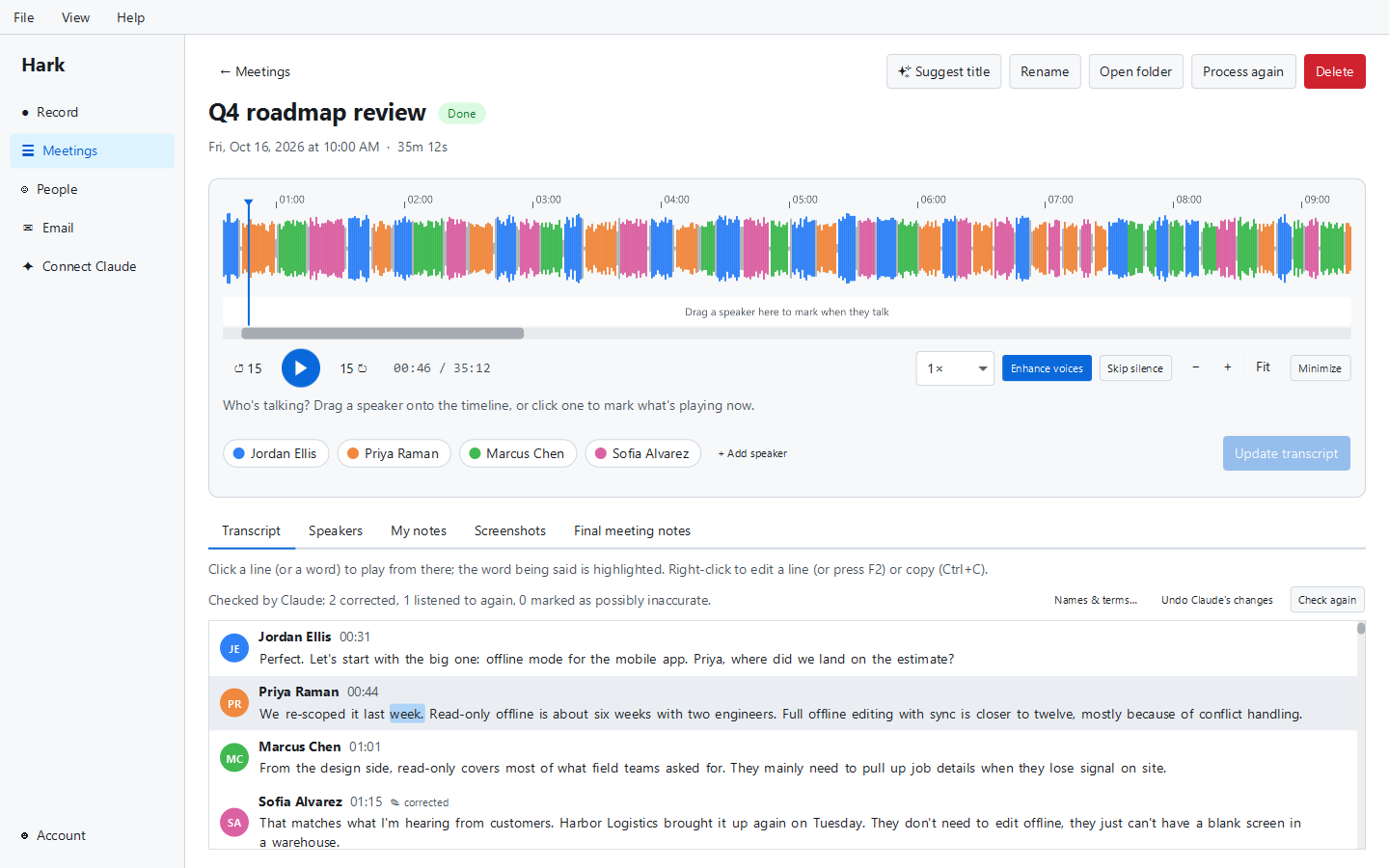
Hark is the first product from External Software, a small software company in Greenville, South Carolina. It is a desktop app for Windows, macOS and Linux that records your meetings, transcribes them on your own computer, tells the speakers apart by their voice so you can name them in a click. Recording, transcription and telling speakers apart are free, forever. Hark Pro ($12/month) adds AI meeting notes written by Claude, sync between your computers and a few power tools. (Pricing was updated in Hark 1.2.0; see how Hark’s pricing works.)
This post covers what Hark does, why we built it the way we did, what costs money and what doesn’t, and, just as important, what it can’t do yet.
Why we built Hark
Most meeting note takers work the same way: a bot joins your call as an extra participant, records it, and uploads the audio to a company’s servers, where it is transcribed and summarised. That model works, and plenty of people are happy with it. But it has costs that are easy to overlook.
- Everyone sees the bot. A “Notetaker has joined” tile changes the feel of a meeting, especially with clients, candidates or anyone outside your company.
- Your audio lives somewhere else. The recording, the transcript and often a voice profile of each speaker sit on a vendor’s servers, under that vendor’s policies.
- The meter is always running. Cloud transcription costs the vendor money for every minute, so free plans tend to come with monthly minute caps.
We wanted something closer to a good notebook: it sits on your desk, it works in any meeting, and nobody else needs to be involved. Modern speech recognition models are now good and efficient enough to run on an ordinary laptop, so a meeting recorder no longer needs a data centre behind it. Hark is built on that idea.
What Hark does
Records any meeting, without joining it
Hark records your microphone and your computer’s audio (the other people on the call) as two separate tracks, then mixes them. Because it records the computer rather than joining the meeting, it works with Zoom, Microsoft Teams, Google Meet, Webex, Slack huddles, and calls placed through your computer. No bot joins, and nothing appears in the participant list.
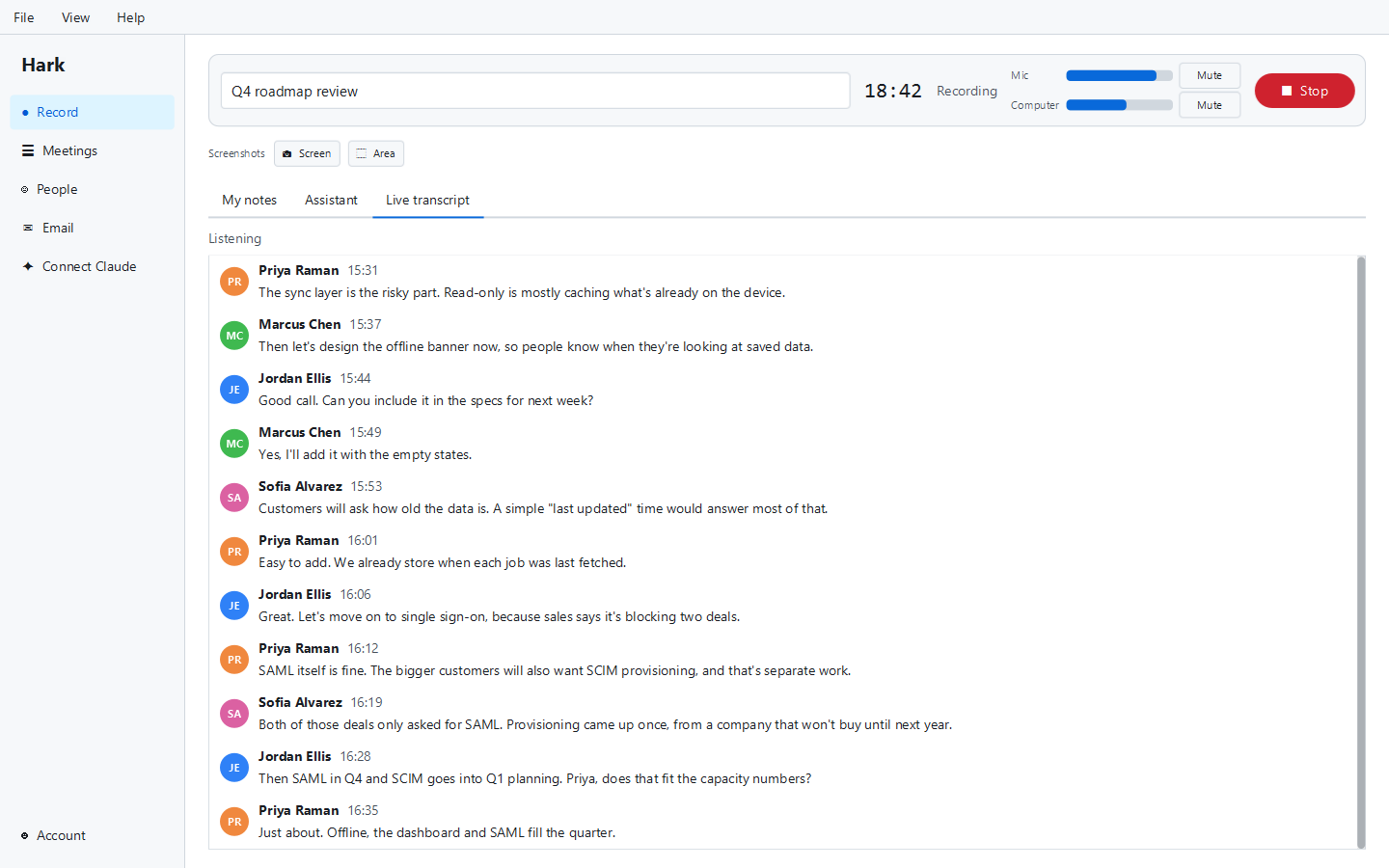
While you record, you can mute either source, take your own notes in a formatted editor, and on Windows grab screenshots with a shortcut from any app (Ctrl+Alt+S for the whole screen, Ctrl+Alt+A for an area). Screenshots land in your notes and on the meeting’s timeline.
You can also import recordings you already have: Voice Memos and QuickTime files, mp3, wav, mp4, mov, ogg, flac, webm and more. Drag a file in and it is transcribed like any meeting.
Transcribes on your computer
Hark shows a live transcript while the meeting runs, then makes a more accurate full transcript after it ends. Both run locally using an NVIDIA Parakeet speech recognition model. Your audio is not uploaded to be transcribed. The speech models (about 730 MB) download once the first time you use them; after that, transcription works offline.
Transcripts have word-level timing. During playback the word being spoken is highlighted, and clicking any word plays from that point. You can edit any line, and your edits are kept: reprocessing or proofreading never overwrites them.
We wrote more about this choice in the case for on-device transcription.
Knows who is speaking
Hark works out how many people spoke and splits the transcript into “Speaker 1”, “Speaker 2” and so on by their voices. You listen to a short clip of each voice and name it, or pick a name you’ve used before. If it gets someone wrong, you can mark who spoke on the meeting’s timeline and update the transcript. Once the meeting is processed, Hark discards the voice analysis: it doesn’t remember the voices of the people you meet with.
The one voice Hark can remember is yours. Turn on Recognize my voice, give your consent, and read a short passage, and Hark labels you in your meetings automatically. It stays encrypted on that computer, never leaves it, and you can turn it off any time. For a plain-English tour of how this works, see how Hark tells voices apart and the Hark voice data policy.
A player built for listening back
The meeting player shows a waveform with speakers along the timeline. You can speed playback up without chipmunk voices, skip silences, and turn on voice enhancement for quiet or muddy recordings. Meetings are searchable, and you can export transcripts and notes or copy notes straight out. (Since Hark 1.2.0, voice enhancement, searching every meeting and Word/PDF exports are part of Hark Pro.)
AI meeting notes (with a subscription)
With a subscription, Claude (made by Anthropic) writes meeting notes from your transcript in the style you choose, and you can add your own style files. It also gives meetings automatic titles, proofreads the transcript against a “Names & terms” list so misheard names and jargon get fixed (every change can be undone), names and describes your screenshots, and can take live notes and answer questions while the meeting is happening. Live notes are off by default.
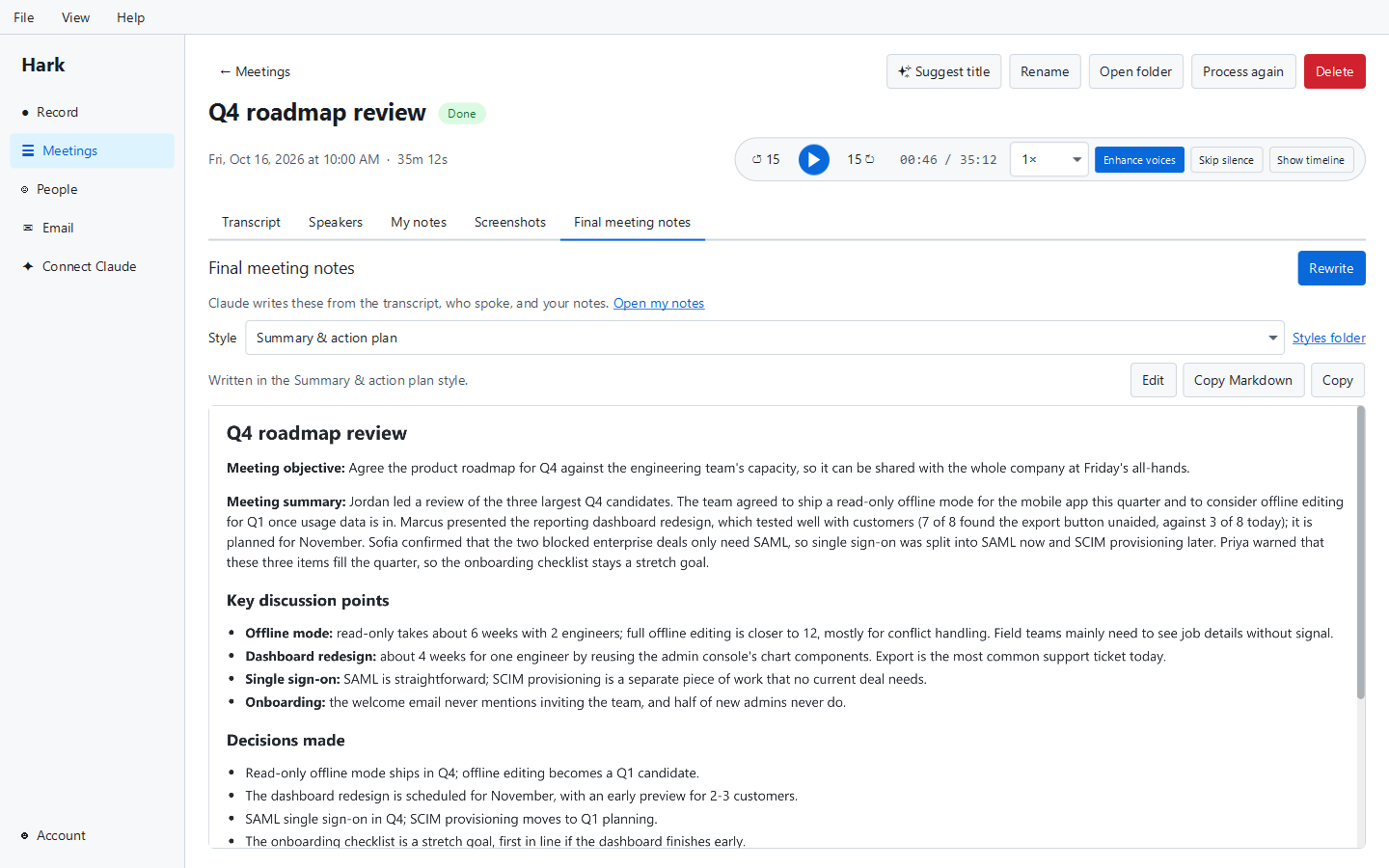
To be clear about how this works: the AI features send your transcript text (not your audio) to Claude through our service. They are not on-device. If you never use them, nothing leaves your computer.
Works with Claude Desktop and Claude Code
Hark runs a small server on your own computer that Claude Desktop or Claude Code can connect to using the Model Context Protocol (MCP). If you already pay for Claude, you can ask it about your meetings, transcripts and people, follow the live transcript, and even start or stop recording. This is free. We cover it in using Claude with your meeting transcripts.
What is free and what costs money
| Free | Subscription ($12/month) | |
|---|---|---|
| Recording, import and screenshots | Unlimited | Unlimited |
| Transcription on your computer | Unlimited | Unlimited |
| Telling speakers apart, recognising your own voice | Yes | Yes |
| Editing, your own notes, export | Yes | Yes |
| Claude Desktop / Claude Code connection | Yes | Yes |
| AI meeting notes, titles, proofreading | No | Yes |
| Sync across your computers | No | Yes |
The free version needs a free account (sign in with a code sent to your email, no card). Your first 3 recorded meetings and 1 imported recording get every Pro feature free, so you can see what the subscription adds on real meetings before deciding. After that, recording, transcription and speaker names keep working with no limits. You can cancel the subscription at any time.
Sync is optional. When it is on, your meeting transcripts, notes, screenshots, AI meeting notes and settings are shared across up to five computers, end-to-end encrypted: only your own computers have the key, so we can’t read them. Recordings, voice data and email are never synced.
The reasoning behind this split is simple: things that run on your computer cost us nothing per use, and AI and sync cost us real money each time. We explain it in full in free forever: how Hark’s pricing works.
Platforms
Hark runs on:
- Windows (x64; Windows on ARM runs the x64 build)
- macOS (Apple Silicon and Intel)
- Linux (x64 and ARM64; computer audio is captured through PulseAudio or PipeWire)
What Hark can’t do yet
Hark is version 1.0.5 and brand new. We would rather you hear the limits from us:
- English only. Transcription supports English and no other languages yet.
- On a Mac, computer audio needs macOS 14.2 or later. Since Hark 1.1.1, Macs on macOS 14.2 or later record both your microphone and the computer’s audio (macOS asks once for permission). On older Macs, Hark records the microphone only, so the other side of a call is only recorded if it plays through your speakers into the mic.
- Audio, not video. Hark records sound and screenshots, not video.
- No mobile apps, no calendar integration, no team workspaces or shared meetings, and no CRM integrations.
- Installers are not code-signed yet, so Windows and macOS may warn you the first time you open Hark.
Recording etiquette
Hark doesn’t announce itself, so letting people know is up to you. Some places require everyone’s consent before a conversation is recorded. Tell people at the start of the meeting and follow your local law; our guide to recording consent laws by state is a good starting point.
Try it
Hark is a free download for Windows, macOS and Linux. Read more on the Hark page, or download Hark from the store. We’d love to hear what you think, and what you’d like it to do next.