 Recount AI Notetaker


November 17, 2026
Recount 1.9: readback while recording, record markers, pause
Recount 1.9 reads back testimony without stopping the recording, logs OFF THE RECORD with one key, pauses a meeting, and fixes transcript lines while you listen.
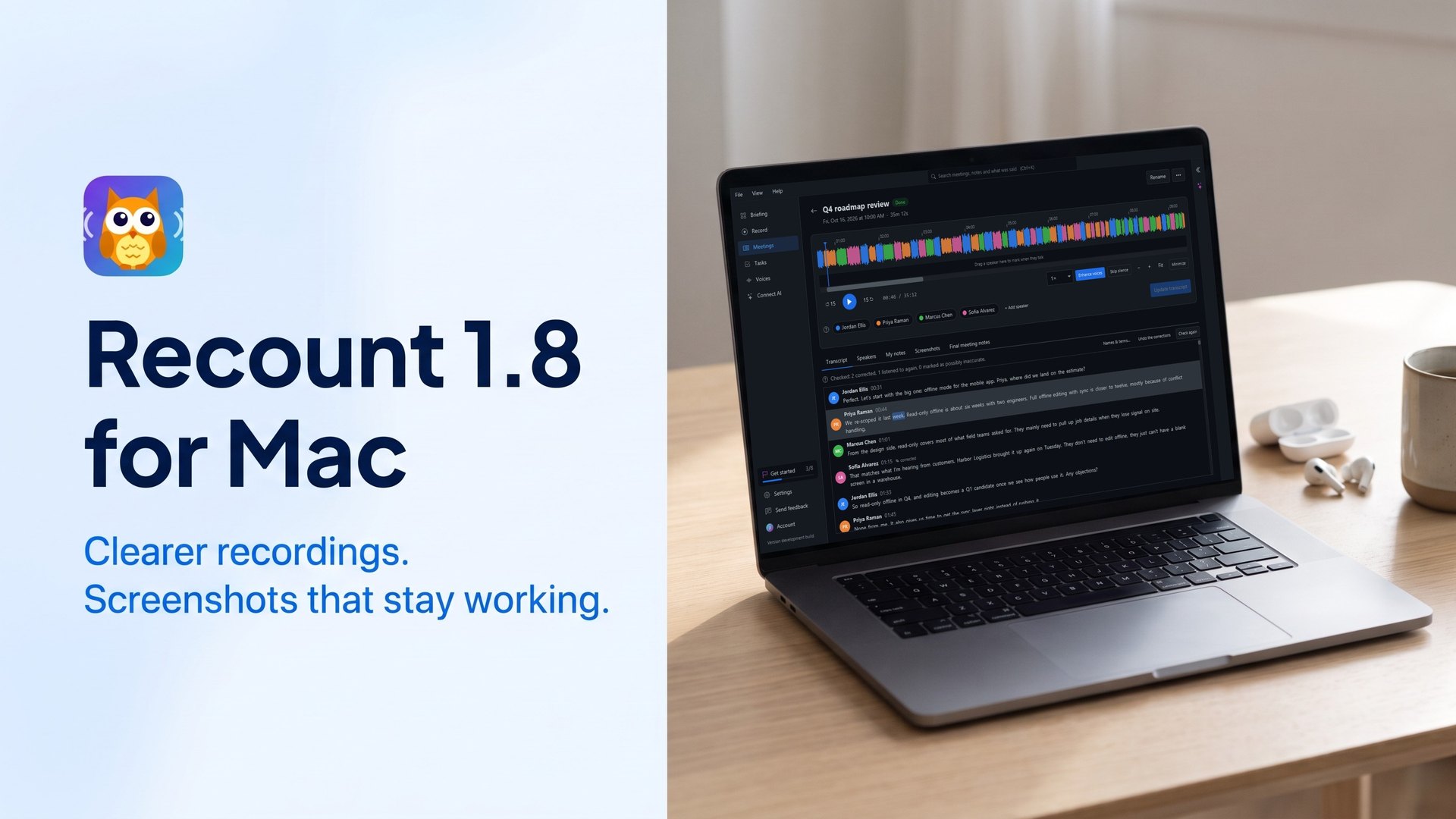
Recount 1.9 is built around one email. A reporter who records depositions and hearings with Recount wrote to us with the exact workflow they needed: go off the record for breaks, read back testimony when someone asks, fix a misheard name while listening, and hand over one clean document. All of it is in this release, and it helps anyone who keeps a careful record of a meeting.
Pause and resume
While you’re recording, the Record page has a Pause button next to Stop.
- Press Pause and Recount stops recording and transcribing. The timer stops too.
- Press Resume to carry on in the same meeting, with the same notes, screenshots and speakers. The paused time is left out, so there’s no long silence in the recording.
The Mute buttons are still there if you only want to leave out one side for a moment.
Readback while recording
Someone asks, “Can you read that back?” Now you can, without stopping anything.
- Press the play button on any line of the live transcript, and Recount plays the meeting from there up to the moment you pressed it.
- Or use the Read back menu above the live transcript: the last 15 seconds, 30 seconds, minute, 2 minutes or 5 minutes.
- The recording carries on the whole time. A bar shows how far the readback has got, with a Back to live button.
- It’s marked in your notes: READBACK START (with where it started) and READBACK END, so the record shows exactly when it happened.
The readback plays through your speakers, so it’s recorded too, just as it would be in the room. Readback is part of Recount Pro, and your first 3 recorded meetings include it.
Off the record, back on the record
Logging the record is now one key press while recording:
- F6 OFF THE RECORD
- F7 BACK ON THE RECORD
- F8 READBACK REQUESTED
- F9 just the time
Each marker lands in your notes on its own bold line, like [1:02:14 · 2:41 PM] OFF THE RECORD: the meeting time and the time of day. They’re also in the new Marker menu in the notes toolbar, the time of day now shows under the timer, and you can change every key in Help > Keyboard Shortcuts. (On some laptops the F keys need the Fn key.)
Fix a line while you listen
Correcting a transcript no longer means jumping between the player and the text.
- Double-click any line in a meeting’s transcript to edit it (F2 still works).
- Ctrl+L plays that line again, and Ctrl+P plays or pauses, while you type. There are Replay and Play buttons next to Save too.
- Press Enter to save and carry on.
We also fixed two things that got in the way: the transcript no longer scrolls the line you’re editing out of view while audio plays, and it no longer loses what you’ve typed when it redraws.
One export, the way you want it
The Export menu on both notes tabs now has Include speaker names and Include timestamps next to Include the transcript. Export from My notes with the transcript ticked and you get your notes, markers included, and the transcript in one document. Recount remembers your choices. Markdown and text exports are free; Word and PDF are Pro.
Getting it
Recount updates itself when you open it, and never in the middle of a recording.
New to Recount? Download Recount for Mac, Windows or Linux. It’s free: recording, transcription on your computer and speaker labels, with no meeting bot joining your calls.
This release started with one person’s email. Have an idea? Tell us through Help > Send Feedback in Recount.