November 8, 2026
Introducing Ferry: SFTP and FTP file transfers in your colors
Ferry moves files between your computer and your servers over SFTP, FTP and FTPS, with a transfer queue, saved sites and 19 themes. Here's what 1.0 does.
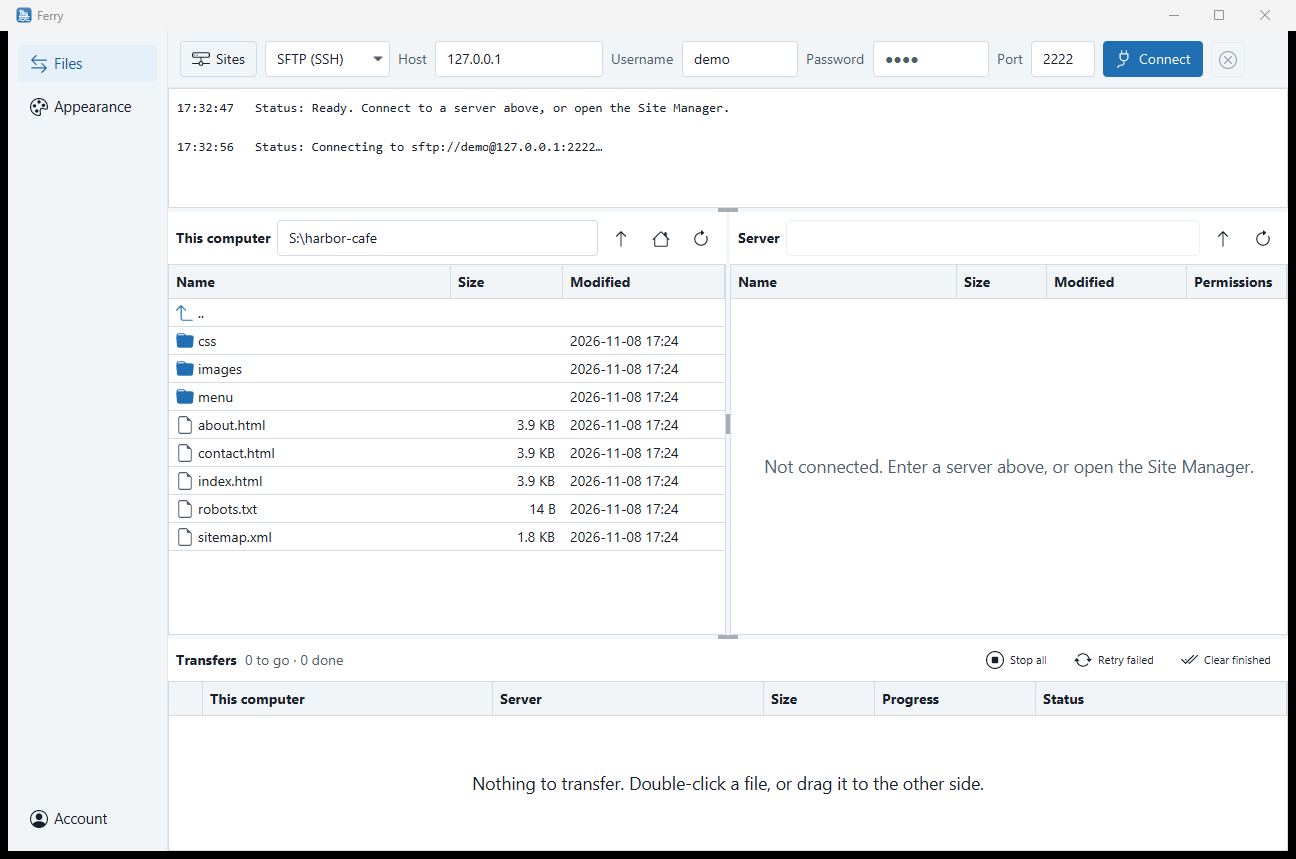
Ferry is the newest app from External Software, the small software company in Greenville, South Carolina behind Hark and Triage. It’s a desktop app for Windows, macOS and Linux that moves files between your computer and your servers over SFTP, FTP and FTPS. It costs $4.99 a month after a 7-day free trial.
This post covers what Ferry 1.0 does, why we made it, what it costs, and what it can’t do yet.
Why we built Ferry
If you look after a website, a few servers or a client’s hosting account, you probably still move files by hand now and then. A file transfer app is one of those tools you keep open for hours, so it should be fast to use and pleasant to look at. Most of them are neither: they look the same as they did fifteen years ago and stay bright white in dark mode.
We wanted a file transfer app that does the familiar job the familiar way, checks servers carefully, and looks the way you want it to. Ferry is that app.
What Ferry does
Your computer on the left, the server on the right
Ferry uses the layout people already know. The Quickconnect bar and a message log are at the top. Your computer is on the left, the server is on the right, and the transfer queue runs along the bottom.
To send a file, double-click it, or drag it to the other side. You can also drag files in from Windows Explorer.
Right-click for the rest: new folder, rename, delete and refresh, on either side. Type a server address like
sftp://alice@example.com:2222 into the Quickconnect bar and Ferry picks the protocol and port from it.
Whole folders, one queue
Send a folder and Ferry recreates it on the other side and queues everything inside it. Transfers run one at a time on their own connection, so you can keep browsing the server while files move. Each one shows its progress. You can stop one or all of them, retry the ones that failed, and clear the finished ones.
Saved sites
The Site Manager keeps the servers you use: the protocol, address, port, username, the server folder to open and the local folder to show next to it. Passwords are saved in your system’s secure storage (the Windows Data Protection API, the macOS Keychain, or the Secret Service on Linux), never in a plain file.
Server keys, checked like OpenSSH
The first time Ferry connects to an SFTP server, it shows you the server’s key fingerprint and asks whether to trust it. After that it remembers the key. If a server’s key ever changes, Ferry warns you clearly and won’t connect unless you trust the new key. A changed key usually means the server was reinstalled, but it can also mean someone is intercepting the connection, so it’s worth a phone call to whoever runs the server.
FTPS in Ferry means FTP over TLS (explicit, the common kind). Ferry checks that the server’s certificate comes from a certificate authority your computer trusts (on Windows, the ones Windows trusts) and that it was issued for that server’s name. Plain FTP doesn’t encrypt anything, so Ferry offers it for the servers that still need it, but we’d use SFTP or FTPS wherever you can.
Make it yours
Theming is the reason Ferry exists. Out of the box, Match system follows Windows’ light or dark mode with Ferry’s own Harbor Light and Harbor Dark themes. The window’s title bar follows too.
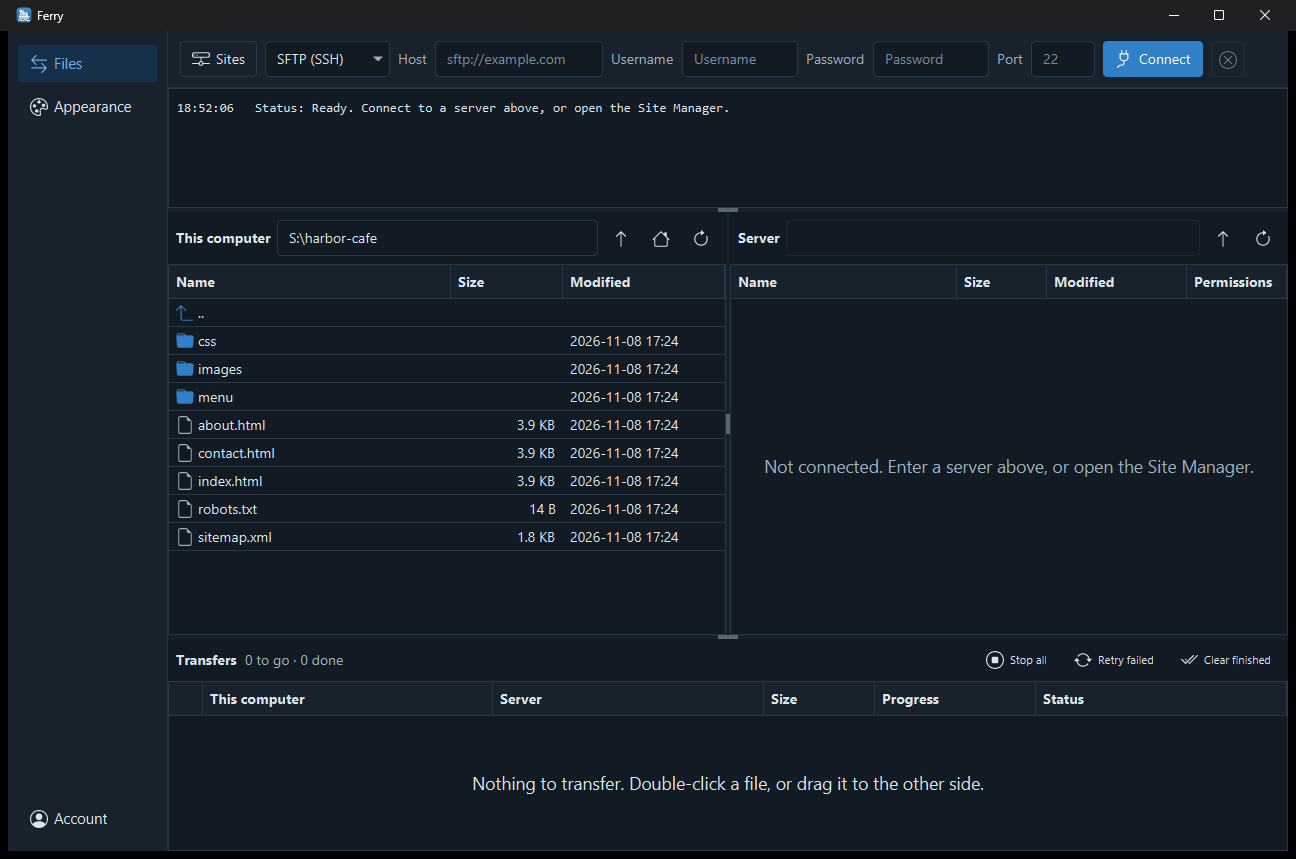
There are 19 built-in themes in all, including Primer, Nord and Cupertino in light and dark, Dracula, Solarized and Gruvbox Dark. Pick one on the Appearance page and Ferry changes at once, no restart.
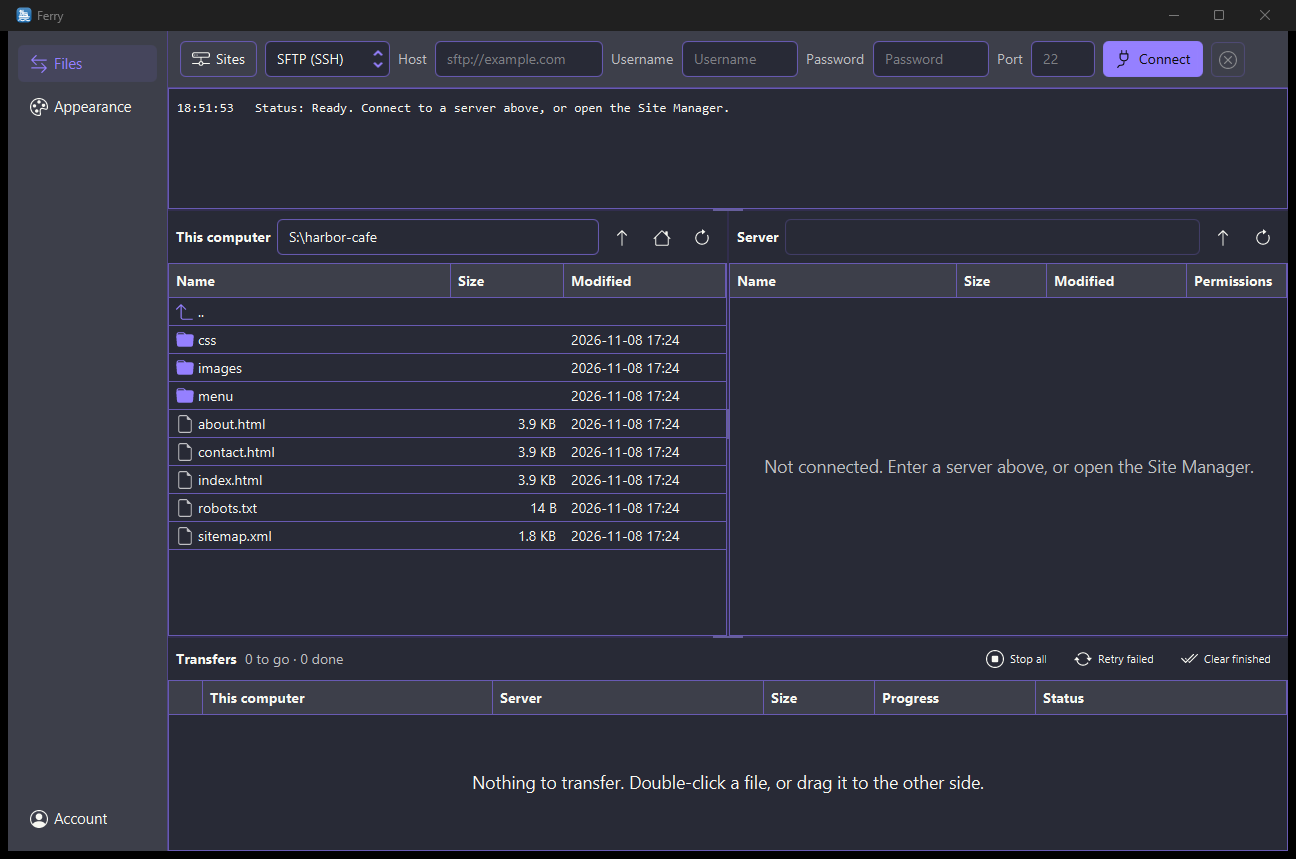
If none of them suits you, make your own. A Ferry theme is a small CSS file that sets the app’s colors on top of one of the base themes. Open the themes folder from the Appearance page: it has a short guide and an example to copy. Save your file there and it appears in the list.
Your files stay between you and your server
Ferry connects straight from your computer to the servers you choose. Your files, file names, server addresses, usernames and passwords never pass through us. Our servers only handle your account, your trial or subscription, updates, and (if you leave them on) crash reports and basic usage counts, which contain none of the above.
What it costs
Ferry has one plan:
- 7-day free trial. Download Ferry and sign in with your email (we send you a code, no password and no card). The trial starts the first time you sign in.
- $4.99 a month after that, for use on up to 5 computers, with updates included.
- Cancel any time from your account page. You keep Ferry until the end of the month you paid for.
Updates download and install by themselves, never in the middle of a transfer.
Platforms
Ferry runs on:
- Windows (x64). The installer and the app are signed by External Software.
- macOS (Apple Silicon and Intel)
- Linux (x64 and ARM64, as
.debpackages)
What Ferry can’t do yet
Ferry is version 1.0. We’d rather you hear the limits from us:
- Password sign-in only. SFTP sign-in with SSH key files or an SSH agent isn’t supported yet.
- No resuming. A transfer that’s stopped or interrupted starts again from the beginning when you retry it.
- No overwrite prompt. Uploading or downloading a file replaces a file of the same name where it lands, without asking. Check the destination first.
- FTPS needs a trusted certificate. Servers with self-signed certificates can’t be used over FTPS yet; there’s no “trust this certificate anyway” option.
- The Mac installers aren’t signed yet, so macOS warns you the first time you open Ferry.
- English only, and no sync of saved sites between computers.
Try it
Read more on the Ferry page, or download Ferry from the store and start the free trial. We’d love to hear what you think, and which of the gaps above you’d like us to close first.